Short answer
Most forex trading apps are either MetaTrader 4 or 5, which many brokers offer, or a broker's own app, with web terminals as a browser option. The app matters less than the regulated company behind it, so check that first, then local deposits and withdrawals, a demo mode and two-factor login. For a beginner, MetaTrader 5 on a demo account is a sensible place to start, because the same skills work at any broker that offers it.
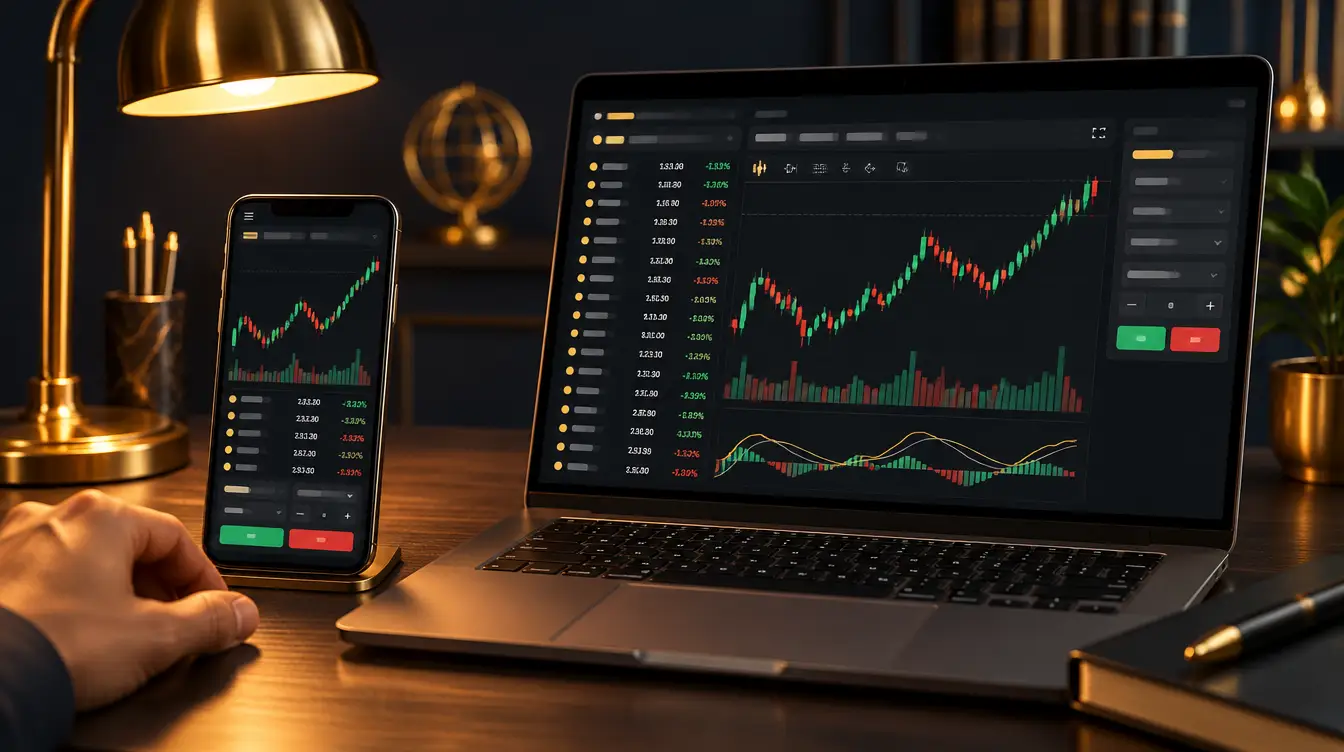
Live chart: EURUSD
Lot sizes, drawn to scale
Each square = 1,000 units of the base currency
- Standard lot
- 1.00
- Units
- 100,000
- Pip value on EUR/USD
- $10
- Mini lot
- 0.10
- Units
- 10,000
- Pip value on EUR/USD
- $1
- Micro lot
- 0.01
- Units
- 1,000
- Pip value on EUR/USD
- $0.10
On this page
- What a trading platform is, and what it isn’t
- The main types of forex trading apps
- MetaTrader 4 vs MetaTrader 5
- Broker apps vs MetaTrader
- Web terminals and TradingView
- What to check before you install a trading app
- How to install MetaTrader 5 and log in
- Your first hour on MetaTrader 5
- Phones, data and power cuts
- Common mistakes with trading apps
- Keeping your phone and trading account secure
- What to do next
Forex trading apps look much the same on a phone: a list of prices, a chart, and two buttons marked Sell and Buy. What sits behind those buttons differs a great deal. Some apps belong to a broker regulated where you live, some to an offshore company, and a few to nobody you could ever trace. This guide covers the main kinds of trading platform (MetaTrader 4 and 5, broker apps, web terminals and TradingView), what to check before you install one, and how to spend your first hour in MetaTrader 5 on a demo account.
What a trading platform is, and what it isn’t
A trading platform is software. It shows prices and charts, lets you place orders and sends them to a broker. The broker is the company that holds your money, quotes the prices and carries out the trades. Our guide to what forex trading is explains the broker’s role in more detail.
That split matters more than any feature. MetaTrader is made by a software company, MetaQuotes, and licensed to many brokers. Two brokers can give you identical MT5 screens while one is licensed by the CMA in Kenya and the other by no one at all. The platform can’t protect your deposit; only the company and its regulator can. So the first question about any app is which company would hold your account. How to choose a forex broker shows how to find out.
The main types of forex trading apps
| Type | Examples | Made by | Good for | Watch out for |
|---|---|---|---|---|
| MetaTrader 4 | MT4 app, desktop and web | MetaQuotes, offered through brokers | Older tutorials and robots written for MT4 | Fewer timeframes and order types than MT5 |
| MetaTrader 5 | MT5 app, desktop and web | MetaQuotes, offered through brokers | Skills that carry across brokers | Separate logins from MT4; many settings to learn |
| A broker’s own app | FXTM App, IC Mobile App, OctaTrader | The broker | Verification, deposits and trading in one place | Works only with that broker |
| Web terminal | MT5 web terminal, brokers’ web platforms | MetaQuotes or the broker | Trading on a computer where you can’t install software | Logging out on shared machines |
| Other platforms | cTrader, TradingView | Independent companies | Charting, and trading where the broker connects them | Not every broker supports them |
The broker apps named are examples taken from those brokers’ own pages, not recommendations. Each broker lists its platforms on its website, and our forex broker comparison sets six of them side by side.
MetaTrader 4 vs MetaTrader 5
MT4 came first and is still offered by many brokers, so plenty of online tutorials are written for it. MT5 is its successor. For a new trader, the differences that matter are these:
| Feature | MetaTrader 4 | MetaTrader 5 |
|---|---|---|
| Chart timeframes | 9, from M1 to MN | 21, adding M2, M10, H2, H6, H12 and others |
| Pending order types | 4: Buy Limit, Sell Limit, Buy Stop, Sell Stop | 6: the same four plus Buy Stop Limit and Sell Stop Limit |
| Economic calendar | Not built in | Built in |
| Depth of market | Not built in | Built in, where the broker supplies the data |
| Position modes | Hedging (several positions per pair) | Hedging or netting, set per account |
| Robots and custom indicators | MQL4 | MQL5; MT4 programs don’t run on MT5 |
| Accounts it accepts | MT4 accounts only | MT5 accounts only |
Hedging mode lets you hold several positions on the same pair, including a buy and a sell at once. Netting mode keeps one position per pair, so a sell order reduces or reverses an open buy instead of opening a second position. Your broker sets the mode for each account and the account details say which you have. Check, because the two behave very differently when you press Sell on a pair you already hold.
The built-in calendar in MT5 lists scheduled releases, such as US jobs figures and central bank decisions, in a tab under your charts. Our economic calendar page explains how to read impact levels and the actual, forecast and previous columns, and why spreads widen around those times.
The most common practical problem is the login. An MT4 account won’t open in the MT5 app, however many times you retype the password; you would need to open a new MT5 account in the broker’s account area. For a beginner starting from nothing, MT5 makes sense: the calendar and extra timeframes are built in, and there’s no reason to learn the older version first.
Broker apps vs MetaTrader
Many brokers have their own app that does two jobs: managing your account (verification, deposits, withdrawals, switching accounts) and trading. MetaTrader only does the second, so MT5 users still need the broker’s website or app for money in and money out.
Broker apps are usually simpler, with fewer chart tools and order types, which suits some beginners. The catch is that the skills don’t travel: change broker and you learn a new app. MetaTrader looks the same everywhere, so the hours you spend learning it aren’t wasted if you move.
One workable split is the broker’s app for deposits, withdrawals and checking the account, and MT5 for charts and orders. Either way, move money only inside the broker’s official app or website, never through a link or a phone number someone sent you.
Web terminals and TradingView
A web terminal runs in your browser with nothing to install. MetaQuotes offers a web version of MT5, and several brokers have their own web platforms. They are handy on a work computer or in a cybercafé, which are exactly the places where you must log out properly, refuse the browser’s offer to save your password, and assume someone could see the screen.
TradingView is a charting platform used through a browser or its own app, with clear charts and a large library of indicators and drawing tools. Some brokers let you connect a trading account and place orders straight from TradingView charts; IC Markets, for example, lists TradingView among its platforms. Where your broker doesn’t connect, you can analyse on TradingView and place orders in MT5. TradingView’s data feed can differ slightly from your broker’s prices, so a level drawn on one may sit a few pips away on the other. The gauges on our live technical signals page come from TradingView too.
What to check before you install a trading app
Look past the design and the star rating. These checks matter more:
| What to check | How to check it | Red flag |
|---|---|---|
| The company behind the app | Find the company name in the app’s legal section or the website footer, then search the regulator’s own register | A brand with no company name, or a licence number that appears only in adverts |
| Deposits and withdrawals | In the account area, look for methods in your country, such as naira bank transfer or M-Pesa, and the minimum withdrawal | Being told to pay a person, a mobile-money number or a crypto wallet |
| Demo mode | Open a demo inside the app or with the same broker | No demo, or a demo that needs a deposit first |
| Language | Check that menus and support work in a language you read easily; some apps also offer Arabic and French | Support only through social media accounts |
| Login security | Look for biometric login (fingerprint or face) and two-factor authentication | No second step when you log in to the account area |
| The publisher | In Google Play or the App Store, check that the developer is the broker or MetaQuotes | A download link sent on WhatsApp or Telegram, or a loose APK file |
The company check is the one beginners skip, and it’s the one that matters most. In Kenya, the CMA publishes its list of licensed online forex brokers; in South Africa, look up the FSP number on the FSCA register. Our pages on Kenya, Nigeria and South Africa explain the local position.
A worked example: testing the money flow with small amounts
Before you trust an app with real money, test deposits and withdrawals small. A trader in Mombasa deposits KES 6,500 through M-Pesa, USD 50 at an example rate of KES 130 to the dollar, and notes the dollar amount actually credited. A week later they ask to withdraw USD 20 to the same M-Pesa line, registered in their own name, and record how long it takes and how many shillings arrive. A broker that is slow or difficult over USD 20 won’t be easier over USD 500. Minimums, fees and rates depend on the broker and the payment method, so read them in your own account area.
How to install MetaTrader 5 and log in
The steps are much the same at every broker, though menu names differ slightly between Android, iPhone and desktop.
- Open an account with your broker, demo or real. You’ll receive a login number, a password and a server name. Write the server name down exactly.
- Download MetaTrader 5 from Google Play or the App Store, or the desktop version from your broker’s website or metatrader5.com. In the app store, check that the developer is MetaQuotes.
- Open the app and go to the accounts screen (on Android usually Manage accounts in the main menu; on iPhone, Settings, then New Account) and tap the plus sign if there is one.
- Search for your broker by its company name. A list of servers appears.
- Choose the server that matches your account details character for character. Demo and real accounts are usually on different servers.
- Enter your login number and password. Save the password only if your phone is locked with a PIN or biometric.
If the login fails, the cause is usually the wrong server, an MT4 account typed into MT5, or confusion with the investor password. The investor password is a read-only password that lets someone view an account without trading on it; verification services use it to check a trader’s record. Nobody needs your main password for anything.
Your first hour on MetaTrader 5
Do all of this on a demo account. The aim is to learn where everything is, not to grow a virtual balance.
Market Watch
Market Watch, called Quotes on the phone app, lists the symbols you can trade with their bid and ask prices. Add the ones you’ll practise with, such as EURUSD and XAUUSD; some brokers add a suffix, so gold may appear under a slightly different name. On desktop, right-click a symbol and open Specification; the phone app has a similar details screen. It shows the contract size, minimum volume, trading hours and swap rates. Read it once for each symbol. Prices, candle times and trading hours in MT5 follow the broker’s server clock rather than your local time; forex trading hours shows how to convert them to WAT, SAST or EAT.
Opening a practice order
Tap the symbol and choose Trade (on desktop, New Order or F9). The order window has a volume field, Stop Loss and Take Profit fields, and two buttons: Sell by Market and Buy by Market.
A worked example with example prices: EURUSD is quoted at 1.08480 bid and 1.08500 ask. You buy 0.01 lots, filled at the ask, 1.08500.
- Stop loss at 1.08300, 20 pips below: the loss at the stop would be 20 × USD 0.10 = USD 2, about NGN 3,000 at an example rate of NGN 1,500.
- Take profit at 1.08900, 40 pips above: USD 4 if the price gets there.
- Straight after opening, the position shows a loss of 2 pips, USD 0.20. That is the spread, the cost of the trade.
MetaTrader often measures distances in points, the smallest price step. On a five-decimal EURUSD quote, 10 points make 1 pip, so a 20-pip stop is 200 points. Type 20 into a field that counts points and your stop sits 2 pips away. What is a pip explains the difference.
Watching, changing and closing
The Trade tab shows the open position, its profit or loss, and your balance, equity, margin, free margin and margin level, all explained in leverage and margin. To move the stop, press and hold the position (double-click on desktop) and choose Modify. To close, choose Close position from the same menu, or let the stop or target close it. The History tab then shows the result.
Repeat this ten times with different stop distances until it’s automatic.
Pending orders
A pending order waits until the price reaches a level you choose. With EURUSD at 1.08500 (an example price), the four basic types work like this:
- a Buy Limit at 1.08200 buys if the price falls to that level;
- a Sell Limit at 1.08800 sells if the price rises to it;
- a Buy Stop at 1.08800 buys if the price rises through it;
- a Sell Stop at 1.08200 sells if the price falls through it.
MT5’s Buy Stop Limit and Sell Stop Limit combine the two: once the stop price is reached, the platform places a limit order at a second price you set. Place one of each on the demo, look for them in the Trade tab, then delete them before they trigger.
Stop-loss and take-profit orders sit on the broker’s server, so they work even if your phone is off or your data runs out. A trailing stop is different: MetaTrader’s desktop terminal manages it, so it only moves while that terminal is running and connected.
Phones, data and power cuts
If you trade on a phone with prepaid data, a few habits help:
- Keep the Market Watch list short. Hide the symbols you don’t use, so the app isn’t streaming prices you never look at.
- Set the stop loss when you open the trade, not later. A flat battery during load-shedding in Durban, a power cut in Lagos or a dropped network in Kisumu shouldn’t decide your loss.
- Download app updates on Wi-Fi where you can.
- After a week, check your phone’s data-usage screen to see what the app actually uses. It depends on how many charts and symbols you keep open.
- Use price alerts where your app offers them, rather than watching the screen for hours.
Common mistakes with trading apps
Most of these happen in the first week:
- Not checking which account is active, then placing a “practice” order on the real account, or the other way round.
- Typing the wrong volume (see the example below).
- Leaving one-click trading switched on, so a single tap opens a trade at market. Keep it off until you’re comfortable.
- Mixing up points and pips when setting a stop.
- Putting the stop on the wrong side of the price, which the platform rejects, or so close that the normal spread hits it.
- Installing a fake MT5 or “trading app” from a link in a chat.
- Giving your login to an “account manager” who offers to trade for you.
A worked example: 1.00 lot instead of 0.01
Volume is the most expensive typo. A trader with USD 100 in the account, about NGN 150,000 at the same example rate, means to open 0.01 lots of EURUSD and types 1.00.
| Intended: 0.01 lots | Typed by mistake: 1.00 lot | |
|---|---|---|
| Value per pip | USD 0.10 | USD 10 |
| Loss on a 20-pip move | USD 2 (about NGN 3,000) | USD 200 (about NGN 300,000) |
| Margin at 1:500, EURUSD at 1.0850 | About USD 2.17 | About USD 217: the order is refused |
| Margin at 1:2000 | About USD 0.54 | About USD 54: the order goes through |
At 1:500 the platform refuses the order, because the margin is more than the balance. At 1:2000 it accepts it, and a move of about 10 pips against the position wipes out the USD 100. The stop out would close it first, with most of the money already gone. Leveraged trading can lose money this fast, which is why it pays to read the volume field twice before every order. The lot size calculator gives you the right volume from your balance and stop distance before you open the order window.
Keeping your phone and trading account secure
A trading app sits on the same phone as your banking app, your email and, in Kenya, your M-Pesa line. Protecting the phone protects all of them.
- Lock the phone with a PIN or biometric, and turn on biometric login in the broker’s app if it has it.
- Turn on two-factor authentication for the broker’s account area and for the email linked to it. If an authenticator app is offered, prefer it to SMS codes, because SIM-swap fraud lets criminals take over a phone number.
- Never share one-time codes, your trading password or your M-Pesa PIN. Real support staff never ask for them.
- Don’t install remote-access apps such as AnyDesk or TeamViewer at a stranger’s request. They let someone see and control everything on your phone.
- Log in over mobile data rather than public Wi-Fi.
- If the phone is lost or stolen, change the broker and email passwords from another device at once and ask your network to block the SIM.
Our page on forex signal scams shows how fake “account managers” exploit these gaps, and what to do if money has already gone.
What to do next
- Open a demo account on MT5 with a broker you have checked.
- Spend your first hour as described above: Market Watch, one order with a stop and a target, modify it, close it, check History.
- Learn to read the chart in front of you with our guide to candlestick patterns and technical analysis.
- If you’re still choosing a broker, use the broker comparison. Exness is the broker we recommend, and our Exness review sets out what we could and couldn’t confirm.
- If an app offers to copy other traders for you, read copy trading explained before you allocate anything.
Common questions
What is the best forex trading app?
There isn't one best app for everyone, because an app is only as good as the broker behind it. Look for an app from a company you can find on a regulator's register, with deposits and withdrawals that work in your country, a demo mode and two-factor login. MetaTrader 5 is a common choice because what you learn carries over from one broker to another.
What is MetaTrader 5?
MetaTrader 5 (MT5) is trading software made by MetaQuotes and offered by many forex brokers on Windows, Mac, the web, Android and iPhone. It shows live prices and charts and sends your orders to the broker. MetaQuotes makes the software, but your account and your money are with the broker.
Is the MetaTrader 5 app free?
Yes. The MT5 app is free to download from Google Play and the App Store, and a demo account costs nothing. When you trade with real money, you pay trading costs such as spreads and commissions to your broker.
What is the difference between MT4 and MT5?
MT5 has 21 chart timeframes against MT4's 9, six pending order types against four, a built-in economic calendar, depth of market, and both hedging and netting account modes. The accounts aren't interchangeable: an MT4 account logs in only to MT4 and an MT5 account only to MT5. Robots written for one don't run on the other.
Can I trade forex with a currency trading app on my phone only?
Yes. MT5 and most broker apps let you follow prices, read charts, place orders and set stop losses on Android or iPhone. A larger screen makes charts easier to read, but a phone is enough to learn on a demo account.
How do I find my MT5 server name?
Your broker shows the server name next to your login number when you open an account, usually in its account area and in the welcome email. In the MT5 app, search for the broker's company name and choose the server that matches exactly. Demo and real accounts are usually on different servers, which is the most common reason a login fails.